
Free veterinary symptom emulator for dogs and cats
WeiseWelt Vet Symptom Emulator is an interactive veterinary orientation tool for reviewing common symptoms in dogs and cats through a visual anatomy canvas, clinical sign selection, and triage level.
In Free mode, it helps identify warning signs, potentially involved anatomical systems, and when veterinary care should be prioritized.
What is included in Free mode?
🐶 Dogs and cats
Select species, main symptoms, and the related anatomical system to generate a clear initial orientation.
🦴 Anatomical canvas
Displays a visual dog or cat silhouette with active anatomical points to better locate the symptom area.
🚨 Triage level
Classifies the orientation into priority levels to help decide whether the case needs observation, a veterinary appointment, or urgent care.
Symptoms it can help orient
Respiratory and cardiovascular
- Difficulty breathing.
- Coughing, fatigue, or rapid breathing.
- Pale, blue, or yellow gums.
- Collapse or marked weakness.
Digestive and urinary
- Persistent vomiting or diarrhea.
- Abdominal pain or distended abdomen.
- Unable to urinate or trying without success.
- Loss of appetite or apparent dehydration.
Neurological, skin, and mobility
- Seizures or disorientation.
- Limping, pain, or difficulty walking.
- Intense scratching, lesions, or inflammation.
- Sudden behavior changes.
Free mode available. Lite, Pro, and Pro Plus coming soon.
Basic orientation by species, symptoms, anatomical area, triage level, core references, and downloadable report.
Will add breed or breed group, additional guided questions, expanded interpretation, and more system-based references.
Will include advanced weighting by breed, age, weight, symptom duration, history, and a more complete PDF report.
Will integrate multifactor analysis, follow-up, extended reports, comparative history, and expanded references.
Emulator
WeiseWelt Vet Symptom Emulator
Orientative veterinary prediagnosis / triage for dogs and cats with animated anatomy, breed-risk weighting, red flags and traceable references.
Select species, breed group and symptoms to activate the triage explanation.
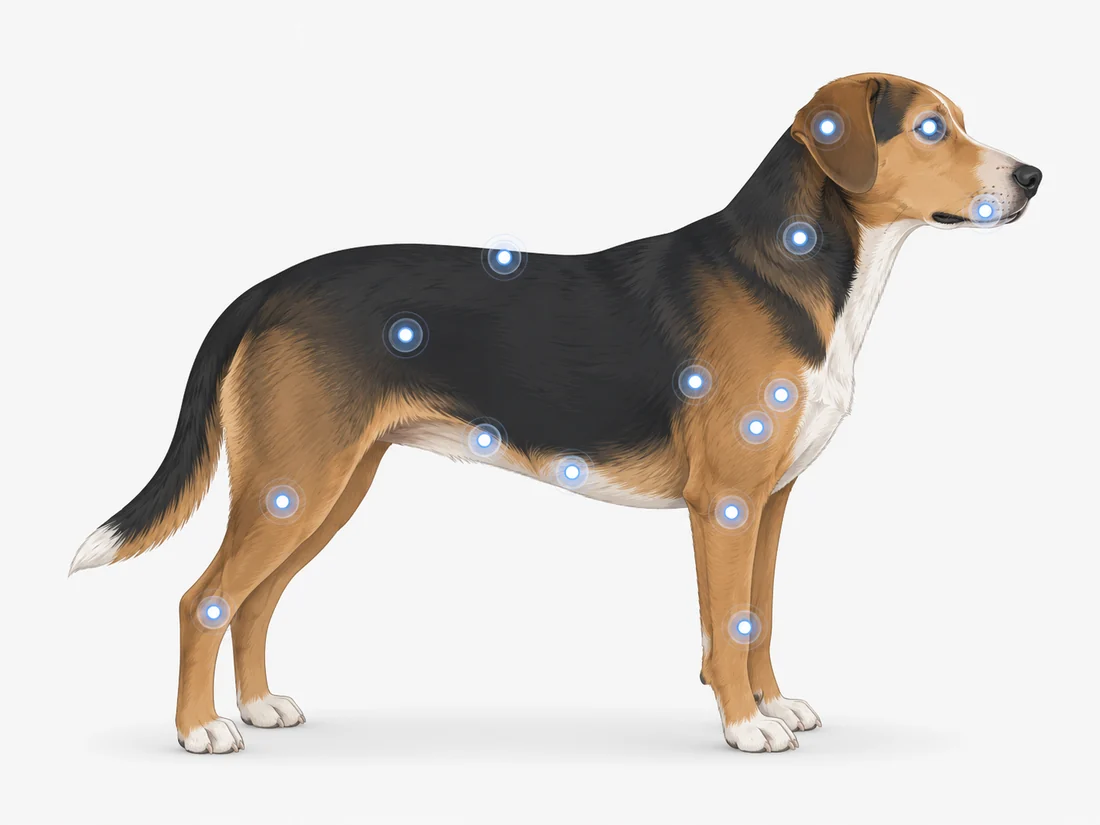
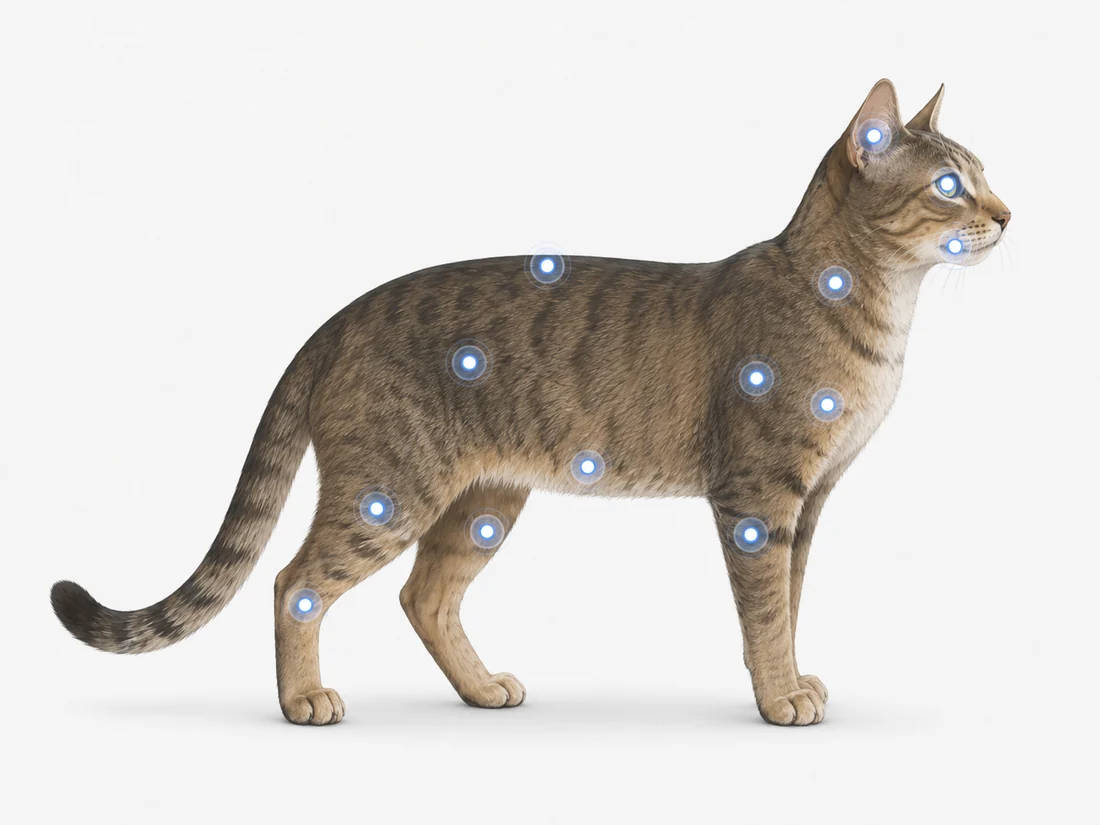
Select symptoms to see involved systems
The emulator connects symptoms with respiratory, digestive, urinary, neurological, skin, pain and cardiovascular signals.
Pending
Complete the symptom selection to calculate an orientative triage level.
Evidence used in this analysis
The links below are filtered according to the selected symptoms, system and risk modifiers.
Plan-based report
Free, Lite, Pro and Pro Plus
Veterinary reference library
References are included so the user can learn more and the content remains traceable.
Downloadable report
Free mode can generate a PDF report with the orientative triage result, selected symptoms, involved anatomical system, priority level, references, and responsible-use disclaimer.
This report can help pet owners organize information before visiting their veterinarian.
Core references
- Merck/MSD Veterinary Manual — emergencies, triage, and clinical signs in dogs and cats.
- AAHA — veterinary guidelines for pain, fluid therapy, and preventive care.
- WSAVA — global guidelines for vaccination, nutrition, and animal welfare.
- AAFP / Cat Friendly — feline health guidelines and cat-friendly veterinary care.
- PubMed Central — peer-reviewed veterinary scientific literature.